|
AcroLexic can be easily customized. You can customize appearance of the program windows and adjust settings of the program in Settings window.
To open Settings window click this button in the lower part of the screen:

 Note: Settings window can also be opened by selecting Acronyms > Settings Note: Settings window can also be opened by selecting Acronyms > Settings
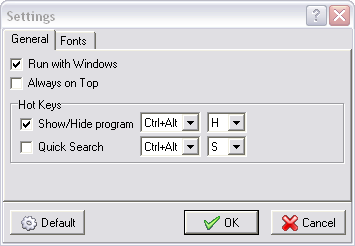
General look of Settings window:
Read more about:

Buttons of the Settings window:

| • | Click Default button to restore the default settings on all tabs |
| • | Click Ok button to save all made changes and closes the Settings window. |
| • | Click Cancel button to discard all changes and close Settings window. |
On the General tab of the Settings window you can adjust all common options of the program:
| • | Select Run with Windows option if you want AcroLexic to become active automatically upon starting MS Windows®. |
| • | Use Always on Top option to keep AcroLexic displayed on your screen when you switch programs or windows |
Hot Keys panel allows you to set the hot keys for AcroLexic :
| • | Show/Hide program option allows to set the hot key, which you can use to show and hide AcroLexic at any time |
| • | Using the Quick Search option you can set the hot key for quick search using AcroLexic (more details...) |
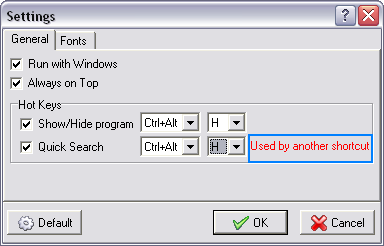
Note: If the hot key, which you have selected is already used by another program, you will be warned about this:
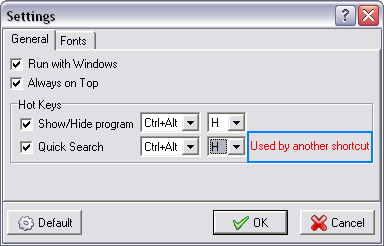
Note: If the hot key, which you have selected is already used by another shortcut of AcroLexic, you will be warned about this:
Back to top
On the Fonts tab of the Settings window you can set custom fonts and colors used in the program:
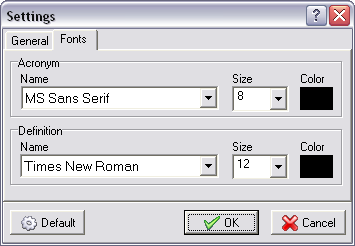
| • | Use Name, Size and Color options on the Acronym panel to customize font, size and color of acronyms in AcroLexic main window. |
| • | Use Name, Size and Color options on the Definition panel to customize font, size and color of definitions in the definition window. |
Back to top
General Tab
See also: Searching the acronym' definitions
See also: Adding new acronyms
|  Adjusting the settings